Basic Agent Configuration
Open an existing agent and select General. If you have not created one yet, start with Getting Started with Agents.
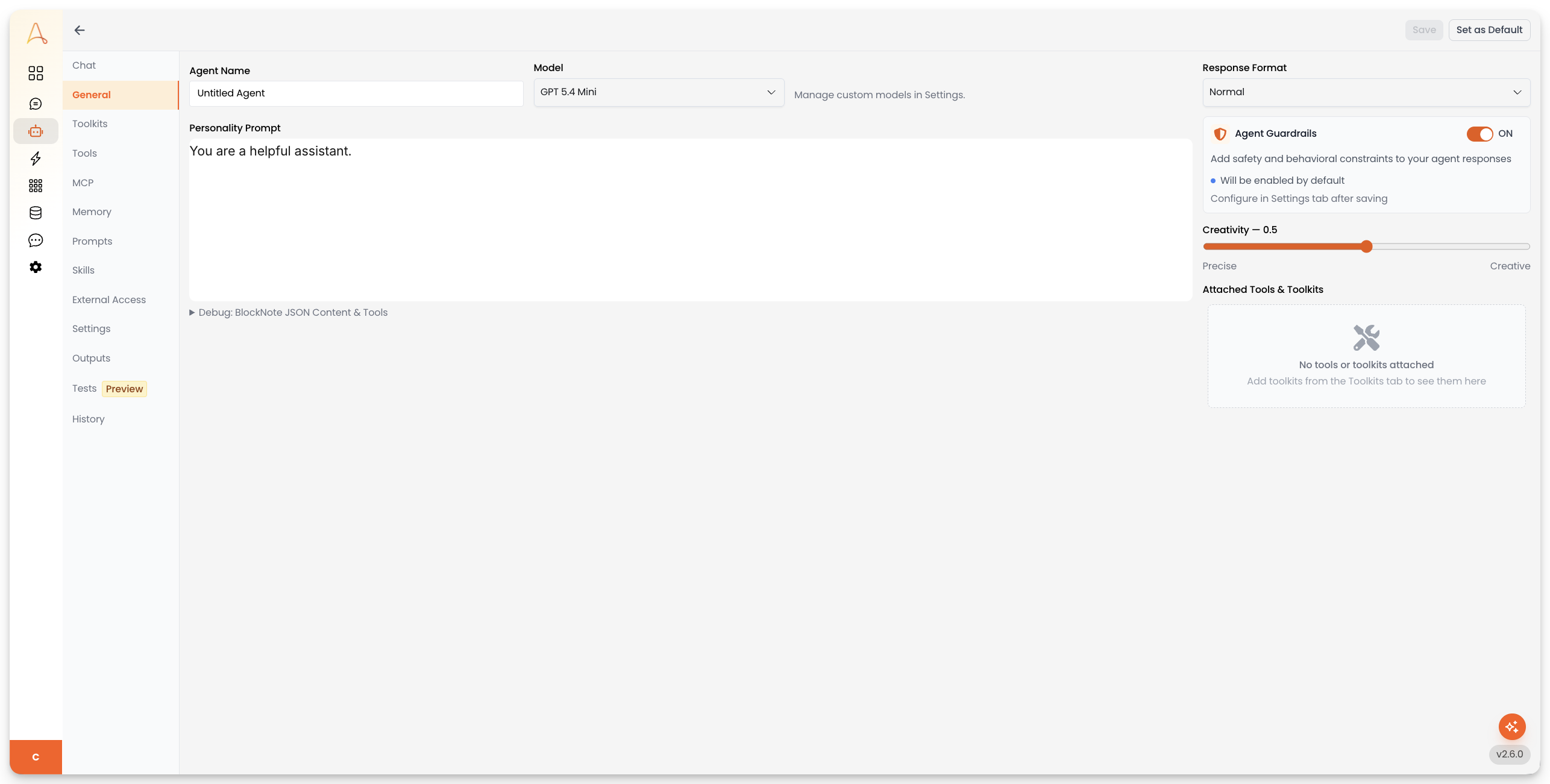
Agent Identity Setup
Use the General tab to configure the agent's identity, model, instructions, and response format.
- Agent Name: A user-facing identifier. Best practice is to use clear, descriptive names like "IT Helpdesk Bot" or "Sales Assistant" rather than generic names like "Bot 1 ". The name helps users understand the agent's specific function.
- Personality Prompt: Instructions that define the agent's behavior, tone, role, and operational guidelines. It governs how the agent responds and interacts during conversations, shaping its communication style, constraints, and overall conduct.
Model Selection Strategy
Choose a model based on the agent's tasks, response time, cost, and tool-use requirements. The model selector groups available models by provider and includes custom models available to your project. Review any deprecation notice shown for the selected model.
See Predefined and Custom Models for configuration and Model Benchmarks for comparisons.
Test with your own tasks
Validate your model choice with representative questions and tool actions before promoting the agent to Live.
Personality Prompts
Use the personality prompt to describe the agent's role, tasks, constraints, and expected responses.
- Role Definition: Clearly state who the agent is. Example: "You are an expert Senior Python Developer."
- Task Definition: Define the primary objective. Example: "Your goal is to review code snippets and suggest performance optimizations."
- Constraint Setting: Set boundaries on behavior. Example: "Do not explain basic concepts. Focus only on advanced patterns."
- Format Specification: Define how the output should look. Example: "Output your response in Markdown with code blocks."
- Tooling Guidance: Instruct on tool usage. Example: "Always verify your code by running it in the sandbox before responding."
Response Configuration Options
In General → Response Format, select Normal for a standard response or choose a saved output template for a structured response. Create and manage templates in Outputs, then select the required template in General. See Outputs.
Use Creativity (Temperature) to adjust the configured temperature. Model support and behavior can vary; test the setting with your selected model.
Save, Publish to Test, and Promote to Live
When editing an existing agent, use Save to persist your changes and automatically publish the saved configuration to Test. Validate the Test version in the Agent Builder → Chat tab before promoting it to Live. The regular Chat page does not offer Test-version selection.
Save already publishes to Test
After a successful Save on an existing agent, you do not need to select Publish to Test again. Publishing alone uses the configuration already saved on the server; it does not save unsaved editor changes.
| Action | What it does |
|---|---|
| Save | Saves your editor changes, then automatically publishes the existing agent to Test. |
| Publish to Test | Publishes the configuration already saved on the server to Test. It does not save unsaved editor changes. |
| Promote to Live | Points Live to the version currently deployed to Test. |
Save and Publish to Test can both record a configuration version, which is why they can appear to do the same thing. An unchanged configuration reuses its existing version rather than creating a duplicate. Saving or publishing to Test does not move an existing Live version; promotion is a separate action.
For example, if Test and Live both use version 1, edit the agent's instructions and select Save. After the save and automatic publication succeed, Test uses the updated version while Live remains on version 1. Validate the agent in Test, then select Promote to Live to make the tested version live.
Saved changes may not be deployed
If the application reports Saved, but failed to deploy to Test, your edits were saved, but Test was not updated. Select Publish to Test to retry publishing the saved configuration before testing.
Some tabs, including Memory, Prompts, External Access, and Skills, save their own changes independently. The Save behavior above applies to the agent configuration saved by the editor.
See Agent Versions and Environments to review and compare saved configurations.
Next Steps
Validate your saved changes in Test, then follow Agent Versions and Environments to promote or roll back a version. For context handling, prompt improvement, and guardrails, see Agent Settings.