Admin Roles & Permissions (RBAC)
Audience: Platform owners and super administrators who need to delegate parts of the Super Admin dashboard without handing out full super-admin rights.
What this feature is
Historically, Super Admin access in AAEKB was all-or-nothing. An account was either a full super admin (every tab, every action, platform-wide) or it held the narrow Monitoring flag (read-only Logs & Auditing) — and nothing in between.
Super Admin RBAC replaces that binary with admin roles. An admin role is a named bundle of permissions across the Super Admin dashboard's surfaces. You assign exactly one admin role to a user, and that role decides:
- which tabs appear in the Super Admin sidebar for them,
- whether each of those tabs is fully interactive or read-only,
- whether the Super Admin entry appears in their top navigation at all.
Four roles ship pre-configured, and you can define as many custom roles as you need. A user with no admin role is an ordinary AAEKB user: no Super Admin entry, no dashboard.
This is platform-wide administration, not team or project permissions. Team roles (Owner / Admin / Editor / Member) and project roles are a separate, unrelated system. Admin roles govern the Super Admin dashboard only.
Prerequisites
- You need Admin Roles → View to open the Admin Roles tab, and Admin Roles → Manage to change anything on it. Full super admins have both by default.
- Direct link:
/admin/super?tabName=roles(the alias?tabName=admin_rolesalso works).
Concepts you need before configuring anything
Resource and action
A permission is a pair: a resource (a Super Admin surface, such as Users or Teams) and an action you may perform on it.
| Action | Matrix column | Meaning |
|---|---|---|
view | View | Read the surface. Open the tab, browse, search, filter, open detail panels. |
manage | Manage | Full create / update / delete on the surface. Implies everything below. |
user_manage | User mgmt | Manage members only — add, remove, change roles, reassign owners. A subset of Manage, available on Teams and Projects. |
export | Export | Download the surface's data as CSV/XLSX. Available on Logs & Auditing. |
Not every action applies to every resource. In the role builder, inapplicable combinations show as a dash (—) instead of a checkbox.
The action hierarchy
Checks are not literal — some actions satisfy others:
| Check for | Passes when the role has |
|---|---|
view | any action on that resource (ticking Manage alone implies View) |
manage | manage |
user_manage | user_manage or manage |
export | export or manage |
The practical consequence: ticking Manage is always enough. You never need to tick View alongside it. Tick View on its own only when you want a genuinely read-only grant.
How access is resolved for a user
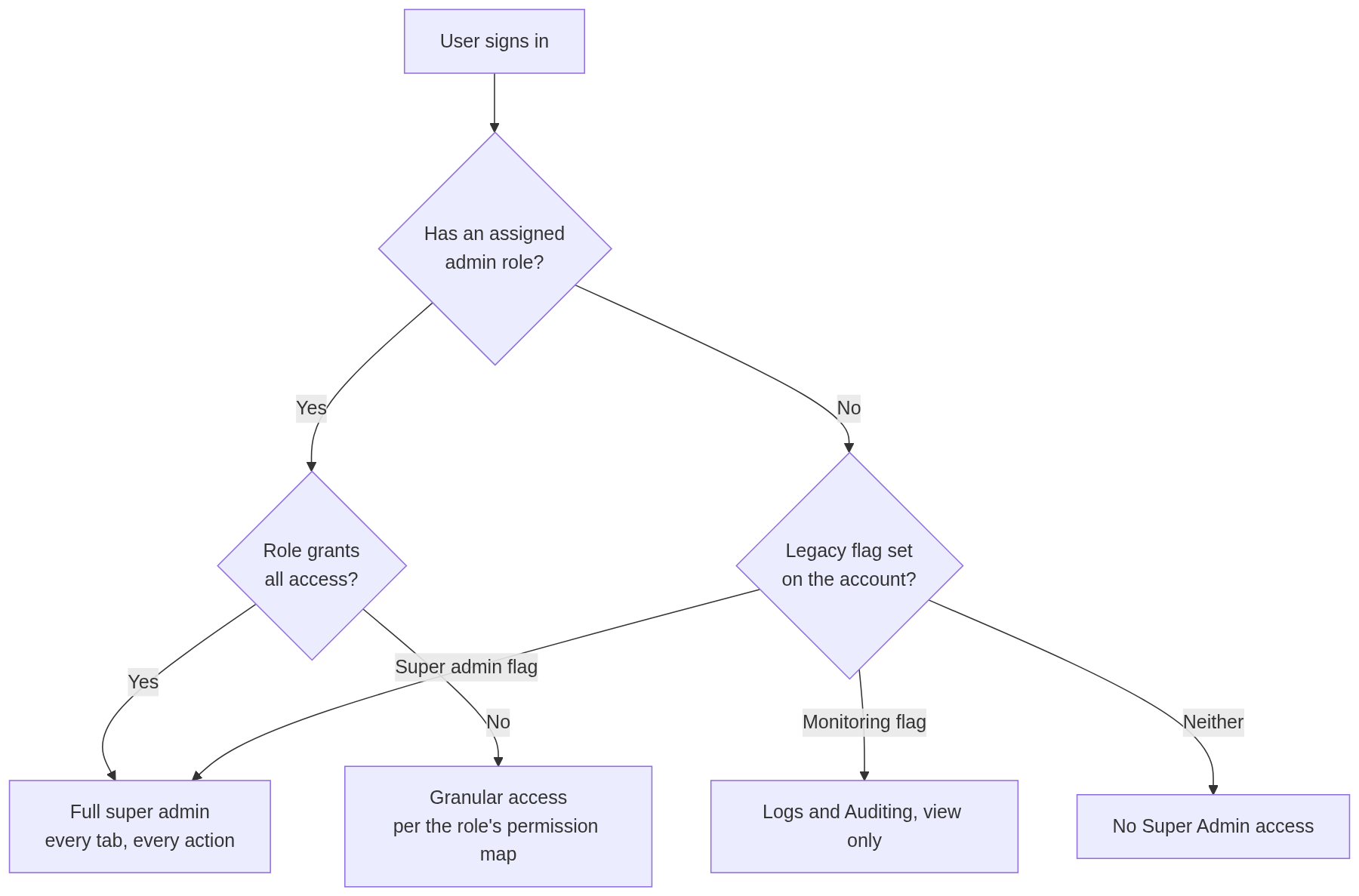
The assigned role is the source of truth. The legacy super-admin / monitoring flags are kept only as a backward-compatible fallback for accounts that predate the feature, and they are automatically kept in sync whenever you assign the built-in Super Admin or Monitoring role.
The four built-in roles
These are seeded automatically and marked System in the roles table. Their permissions are fixed and cannot be edited or deleted — their names and descriptions can be changed if your organisation uses different terminology. To get a variation on one of them, create a custom role instead.
| Role | Permissions | What the holder gets |
|---|---|---|
| Super Admin | All access | Everything. Identical to the legacy super-admin flag. |
| Monitoring | Logs & Auditing → View | Logs & Auditing only, read-only, no export. Identical to the legacy monitoring flag. |
| Project Manager | Projects → View, Manage, User mgmt | The Projects tab, fully interactive: create, edit, clone, transfer, and manage project membership and roles. |
| User Access Manager (UAM) | Access Controls → View, Manage; Users → View, Manage; Teams → User mgmt; Projects → User mgmt | Users and Access Controls fully interactive; Teams visible read-only. See the note below. |
Note on the UAM role. Its user_manage grants on Teams and Projects are honoured by the API, but the dashboard's tab-visibility rules mean the Projects tab does not appear (it requires Manage) and the Teams tab opens read-only (member-management controls are hidden). A UAM user therefore administers users through the Users tab and Access Controls, not through Teams or Projects. If you need a role that can genuinely manage team membership from the Teams tab, create a custom role with Teams → Manage.
Permission reference
This is the complete matrix as it appears in the role builder, in order.
Permissions that work end-to-end
These are enforced consistently by both the dashboard and the API. Use these to build delegated roles.
| Resource | Actions | Tab unlocked | Appears with | What it grants |
|---|---|---|---|---|
| Users | View, Manage | Users | View | View: browse and search all users, open team info and SAML metadata, view login IPs. Manage: edit user details, delete users, create users, approve/reject inactivity re-enable requests, and export the user list. (The export API only requires View, but the button is hidden while the tab is read-only, so Manage is what surfaces it.) |
| Teams | View, Manage, User mgmt | Teams | View | View: browse teams, details, members, settings, billing and team logs. Manage: create/edit/delete teams, subdomains, settings, renew licences, transfer ownership. User mgmt: add, remove and re-role team members (API-level; see the UAM note above). |
| Projects | View, Manage, User mgmt | Projects | Manage | View: browse, search and inspect all projects. Manage: clone projects, transfer them between teams. User mgmt: add/remove project members, change member roles, change project owner. |
| Access Controls | View, Manage | Access Controls | View | View: see the current sign-in access mode, the "Require pre-authorized account" setting, and all SAML access rules. Manage: switch access mode, toggle pre-authorization lockdown, and create/edit/delete SAML access rules. |
| Logs & Auditing | View, Export | Logs & Auditing | View | View: read every audit surface — chat, user, access, tools, security, team, SSO, settings, agent-template and Super Admin action logs. Export: un-hides the Export buttons — but see Audit log export cannot be delegated, the export endpoints themselves remain restricted to full super admins. |
| Admin Roles | View, Manage | Admin Roles | View | View: see all roles and their permissions; also required for the admin-role picker on the Users tab to be usable. Manage: create, edit and delete custom roles, and change any user's assigned admin role. |
| Custom Toolkits | View, Manage | (no tab — currently hidden) | — | Manage: create and share platform-global custom toolkits across teams via the API. Also required to use the Admin Assistant on the Super Admin header. |
Permissions that currently gate the dashboard only
These resources make the corresponding tab appear, but the underlying APIs are still restricted to full super admins. A user given only these permissions will see the tab and then hit "Unauthorized" errors when it loads.
Do not build delegated roles on these yet. They are listed here so the matrix is not mysterious.
| Resource | Tab(s) it reveals | Status |
|---|---|---|
| Overview | (none) | No effect at all. The Overview tab is full-super-admin-only regardless. |
| Agents | Agents | UI gate only — API requires full super admin. |
| SSO Configuration | SSO Configuration | UI gate only — API requires full super admin. |
| Knowledge Base | Knowledge Base | UI gate only — API requires full super admin. |
| Templates | Agent Templates, Workflow Templates, Project Templates | UI gate only — API requires full super admin. |
| Toolkits | Toolkits | UI gate only — API requires full super admin. |
| Secrets | Secrets, Vault | UI gate only — API requires full super admin. |
| Platform Settings | Platform Settings | UI gate only — API requires full super admin. |
Surfaces that can never be delegated
These have no permission in the matrix and are reserved for full super admins by design: Overview, App Licenses, Teams Bots, LLM Metrics, LLM Usage, Extraction Usage, Email Configuration, KB Decryption Service, Migrations, System, Task Monitor, Global Notifications, and Custom Python Packages.
Custom Python Packages is deliberately excluded and permanently locked to full super admins, because installing a package executes arbitrary code on the appliance host.
Which tabs a role can see
Two different rules apply, and this is the single most common source of confusion when building a role.
| Rule | Resources | Behaviour |
|---|---|---|
| View is enough | Users, Teams, Access Controls, Logs & Auditing, Admin Roles | Granting View reveals the tab in a safe read-only state. Granting Manage makes it fully interactive. |
| Manage is required | Projects, Agents, SSO Configuration, Knowledge Base, Templates, Toolkits, Custom Toolkits, Secrets, Platform Settings | Granting View alone hides the tab. These tabs do not yet have read-only handling, so a view-only grant would show live buttons that the user must not press. |
If you tick View on Projects and the tab does not appear, this is why. Tick Manage.
What read-only actually looks like
There is no banner or badge announcing read-only mode. The controls are simply absent or greyed out.
| Tab | Hidden entirely | Disabled (visible but greyed) | Still available |
|---|---|---|---|
| Users | Create User, Export, Delete User | Assign admin role picker, Approve/Reject on pending re-enable requests | Search, browse, role badges, View Team, View SAML, login-IP details, pagination |
| Teams | Create Team, Edit Team, Delete Team, Renew Licence, Add/Remove Member, Transfer Ownership, Edit Settings, rule editing under Automated Management, Export on Team Logs/Audit | — | Search and filter teams, all team details, member list (roles shown as plain text), settings, billing, logs and audit browsing |
| Access Controls | Rule edit and delete icons, the whole "Add New Rule" section | "Allow Any New Users" card, "Restrict to SAML Metadata" card, "Require pre-authorized account" switch | Current mode, restricted-mode warning, all existing SAML rules |
| Logs & Auditing | Export on every audit view, the Enable switches on audit feature cards | — | All filters, browsing, row expansion, detail modals, Load More |
| Admin Roles | New Role, Save, Delete | Name and description fields, every permission checkbox | The role list, and the View button which opens a role in a disabled editor |
Step-by-step
- Create a custom role
- Go to Super Admin → Security & access → Admin Roles.
- Click New Role.
- Enter a Name (for example, Support Tier 2). This is what appears in the role picker. An internal id is generated from the name automatically — lowercase, with spaces and punctuation replaced by underscores.
- Enter a Description. This shows under the name in the roles table; write it for the next administrator, not for yourself.
- In the permission matrix, tick the actions you want per resource. Remember: Manage implies View — you do not need both; for anything outside Users / Teams / Access Controls / Logs & Auditing / Admin Roles, you must tick Manage for the tab to appear at all; anything in the dashboard-only list above will not work end-to-end yet.
- Click Save.
The new role appears in the table marked Custom, and is immediately offered in the role picker on the Users tab.
- Edit or delete a role
- Edit — click Edit on a custom role, change what you need, click Save.
- System roles — the button reads View instead of Edit and the matrix is locked. Name and description can still be changed; permissions cannot.
- Delete — click Delete on a custom role and confirm. Anyone currently holding it is silently unassigned and drops to no Super Admin access at all. There is no reassignment prompt, so check who holds a role before deleting it.
- Assign a role to a user
- Go to Super Admin → Users & workspaces → Users.
- Find the user (search accepts user ID, email, or name).
- In their row, open the Assign admin role dropdown and pick a role, or No admin role to revoke all Super Admin access.
- Confirm the prompt. Granting or revoking platform-wide privileges is deliberately gated behind a confirmation, and demoting yourself carries an extra warning — you will lose access to the Super Admin dashboard immediately and will need another super admin to restore it.
A user has at most one admin role. Assigning a new one replaces the previous one.
Two permissions are involved here: Admin Roles → View is required for the picker to be populated (without it, the dropdown is greyed out and the user's current role shows as a plain label — this is why the built-in UAM role cannot assign admin roles), and Admin Roles → Manage is required to actually change anyone's role.
- Know when changes take effect
- For you, acting on others: immediately. The server re-resolves permissions on every request, so a revocation blocks the next API call the affected user makes.
- For the affected user's browser: their sidebar and navigation are drawn from permission data fetched at sign-in and cached locally. They must reload the page (or sign out and back in) to see tabs appear or disappear.
Tell users to refresh after you change their role.
Behaviour and limitations to plan around
The tab-visibility asymmetry
View reveals only five tabs (Users, Teams, Access Controls, Logs & Auditing, Admin Roles); everything else needs Manage. Budget for this when designing least-privilege roles.
The UAM role cannot manage team or project membership from the UI
Its user_manage grants are real at the API level but the Teams tab renders read-only and the Projects tab is hidden. Use Teams → Manage in a custom role if UI-based team membership administration is the requirement.
Audit log export cannot be delegated
Ticking Logs & Auditing → Export un-hides the Export buttons, but every audit export endpoint still requires a full super admin, so the download fails with "Unauthorized". Treat audit export as full-super-admin-only for now. Read access delegates correctly.
Several matrix resources are dashboard-only
Agents, SSO Configuration, Knowledge Base, Templates, Toolkits, Secrets and Platform Settings reveal their tabs but their APIs still demand a full super admin. Overview does nothing whatsoever.
The legacy flags are still there, and stay in sync
Assigning Super Admin sets the legacy super-admin flag; assigning Monitoring sets the legacy monitoring flag; assigning any other role, or clearing the role, clears both. You never need to manage these flags yourself, and you should not try to — role assignment is the only supported path.
Nothing prevents you from locking yourself out. An administrator can remove their own Super Admin role. The confirmation dialog warns about it, but the action is permitted. Keep at least two full super admins on every deployment.
Recipes
| Requirement | Configuration |
|---|---|
| Help desk that can look people up but change nothing | Custom role: Users → View |
| Help desk that can also edit and disable accounts | Custom role: Users → Manage |
| Identity administrator (the built-in UAM shape) | Assign User Access Manager, or a custom role with Users → Manage, Access Controls → Manage |
| Identity administrator who can also assign admin roles | Custom role: Users → Manage, Access Controls → Manage, Admin Roles → Manage |
| Team administrator who manages membership from the Teams tab | Custom role: Teams → Manage (User mgmt alone is not enough) |
| Project administrator | Assign Project Manager, or a custom role with Projects → Manage |
| Compliance / audit reader | Assign Monitoring, or a custom role with Logs & Auditing → View. Export is not delegable. |
| Auditor who also needs to read user and team records | Custom role: Logs & Auditing → View, Users → View, Teams → View |
Auditing
Every admin-role change is written to the Super Admin action audit log, visible under Super Admin → Usage & auditing → Logs & Auditing → Super Admin audits.
| Event | Recorded when |
|---|---|
admin_role_created | A custom role is created (with its permission map) |
admin_role_updated | A role's name, description or permissions change |
admin_role_deleted | A custom role is deleted |
super_admin_granted / super_admin_revoked | A user gains or loses the full Super Admin role |
monitoring_role_granted / monitoring_role_revoked | A user gains or loses the Monitoring role |
admin_role_changed | Any other role assignment change, with the previous and new role recorded |
Role assignment events record the performer, the target user, and the before/after role.
Testing checklist
- Create a test custom role with a single narrow permission (e.g. Users → View) and confirm the tab appears read-only for a test account
- Confirm a Manage-only resource (e.g. Projects) stays hidden when only View is granted, and appears when Manage is granted
- Assign a role to a test user, then confirm they must reload their browser before the sidebar updates
- Attempt to edit a system role's permissions and confirm it's rejected
- Delete a custom role that's currently assigned to someone and confirm they're silently dropped to no admin role
- Confirm each role change appears correctly in the Super Admin audit log
- Verify at least two accounts hold full Super Admin before handing out any custom roles
Troubleshooting
| Symptom | Cause | Fix |
|---|---|---|
| User has a role but sees no Super Admin entry in the navigation | The role grants nothing that maps to a visible tab (for example, only View on a Manage-gated resource), or their browser has stale cached permissions | Check the role against the permission reference above; have the user reload the page |
| A tab you granted does not appear | The resource requires Manage to be visible | Tick Manage instead of View |
| Tab appears but everything fails with "Unauthorized" | The resource gates the dashboard only | See the dashboard-only list above — that resource is not delegable yet |
| Buttons are missing on a tab the user can open | The tab is in read-only mode: they have View but not Manage | Grant Manage on that resource |
| Export button is missing on Logs & Auditing | Read-only mode — no Export permission | Grant Export. Note the download will still fail (audit export is not delegable) |
| Export button is present but the download fails | Audit exports require a full super admin | See "Audit log export cannot be delegated" above |
| The Assign admin role dropdown is greyed out | The acting administrator lacks Admin Roles → View, so the role list could not load | Grant Admin Roles → View (and Manage, to actually change roles) |
| Changing a user's admin role returns "Unauthorized" | The acting administrator lacks Admin Roles → Manage | Grant Admin Roles → Manage |
| "Cannot modify the permissions of a system role" | System role permissions are fixed | Create a custom role with the permissions you want |
| "Cannot delete a system role" | The four built-in roles are protected | Unassign it from users instead |
| Role change did not take effect for the user | Their client cached the old permissions | Have them reload or sign out and back in |
| An existing super admin lost access after upgrade | Should not happen — existing holders were migrated automatically | Reassign the Super Admin role from the Users tab using another full super admin account |
Operational guidance
Upgrade behaviour
When the feature is deployed, existing privilege holders are migrated automatically:
- Accounts with the legacy super-admin flag are assigned the Super Admin role.
- Accounts with only the legacy monitoring flag are assigned the Monitoring role.
- All other accounts are left with no admin role.
No action is required, and no one loses access during the upgrade.
API reference
All endpoints are under the admin API and require a bearer token for a user holding the stated permission.
| Method & path | Permission | Purpose |
|---|---|---|
GET /admin/permissions | roles:view | The catalog of resources and the actions valid for each — what the role builder renders |
GET /admin/roles | roles:view | List all roles |
POST /admin/roles | roles:manage | Create a custom role |
PUT /admin/roles/{role_id} | roles:manage | Update a role (permissions rejected for system roles) |
DELETE /admin/roles/{role_id} | roles:manage | Delete a custom role (system roles rejected) |
PUT /admin/users/{user_id} with {"admin_role_id": "..."} | roles:manage | Assign a role; null clears it |
GET /user/info | authenticated | Returns the caller's admin_role_id and effective admin_permissions |
A role's permissions are a JSON object mapping resource to a list of actions. The all-access wildcard is {"*": ["*"]}. Creating a role with an unknown resource, or an action not valid for that resource, is rejected with HTTP 400.
Example — the built-in User Access Manager:
{
  "access_controls": ["view", "manage"],
  "users": ["view", "manage"],
  "teams": ["user_manage"],
  "projects": ["user_manage"]
}
Example — creating a read-only help desk role:
POST /admin/roles
{
  "name": "Help Desk",
  "description": "Read-only access to user records for first-line support.",
  "permissions": { "users": ["view"] }
}
Permission matrix at a glance
| Resource | View | Manage | User mgmt | Export | Tab appears with | Fully enforced |
|---|---|---|---|---|---|---|
| Overview | ✓ | — | — | — | never | no effect |
| Users | ✓ | ✓ | — | — | View | yes |
| Teams | ✓ | ✓ | ✓ | — | View | yes |
| Projects | ✓ | ✓ | ✓ | — | Manage | yes |
| Agents | ✓ | ✓ | — | — | Manage | UI only |
| Access Controls | ✓ | ✓ | — | — | View | yes |
| SSO Configuration | ✓ | ✓ | — | — | Manage | UI only |
| Logs & Auditing | ✓ | — | — | ✓ | View | view only |
| Knowledge Base | ✓ | ✓ | — | — | Manage | UI only |
| Templates | ✓ | ✓ | — | — | Manage | UI only |
| Toolkits | ✓ | ✓ | — | — | Manage | UI only |
| Custom Toolkits | ✓ | ✓ | — | — | no tab | yes (API) |
| Secrets | ✓ | ✓ | — | — | Manage | UI only |
| Platform Settings | ✓ | ✓ | — | — | Manage | UI only |
| Admin Roles | ✓ | ✓ | — | — | View | yes |
Document version 1.0 — covers the Super Admin RBAC feature as shipped and subsequently corrected. The dashboard-only permissions and audit-export limitation described above reflect known limitations at the time of writing; verify against your deployed release before relying on them.