Add Google Drive Content to the Knowledge Base
Use this page after Google Drive is already connected. To create or manage the connection, see Connect Google Drive.
Once connected, bring Drive files and folders into the project Knowledge Base so agents can search them. Ingest uses URL Upload with a Google Drive file or folder link.
Prerequisites
- An active Google Drive connection for this project (Connect Google Drive)
- Permission to manage Knowledge Base resources
- A Google Drive file or folder URL you can open with the connected Google account
Add files or folders from a URL
- Go to Knowledge Base → KB Data (or your project’s knowledge browser).
- Click + New → URL Upload.
- Paste the Google Drive file or folder URL.
- Click Add URL.
Supported links are standard Google Drive share / open URLs for files (Docs, Sheets, Slides, PDFs, and other Drive-hosted types) or folders. Folder URLs ingest the folder’s contents the connector can access.
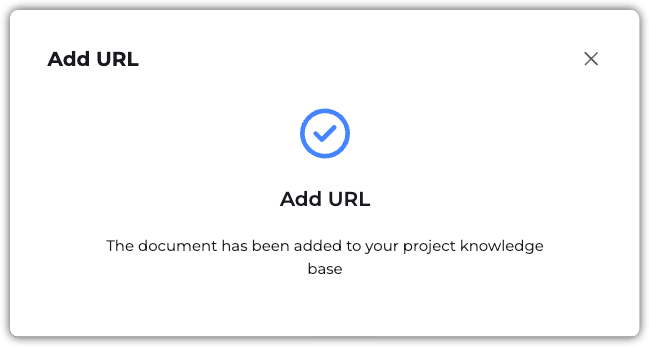
When the add succeeds, you’ll see a confirmation that the URL was added.
Connector missing
If you paste a Google Drive (or SharePoint) link without an active connection for your account, EKB shows a Connector missing prompt and asks you to connect first. Complete Connect Google Drive, then retry URL Upload.
Refresh synced Drive content
For resources already ingested from Google Drive, open the resource’s actions menu (⋯) and choose Sync to pull the latest content from the same Drive URL.
After content is in the Knowledge Base
- Documents are searchable by agents that use this project’s Knowledge Base
- Apply Access Tags if only some users should see ingested files
- Re-run Sync on the resource when Drive content changes and you need a refresh
Troubleshooting
| Symptom | What to check |
|---|---|
| Connector missing when adding a Drive URL | Complete Connect Google Drive with the Google account that owns or can open the link, then retry |
| Add URL fails / permission error | Confirm the connected account can open the link in Drive; use a share link that grants at least view access |
| Folder add incomplete | Folder must be readable by the connected account; retry with a file URL or a narrower folder |
| Agents cannot find new files | Confirm ingest finished; check Access Tags; confirm the agent’s KB toolkit targets this project |