Agent Mode
Open My Account → Agent Mode to choose which projects are available in Agent Mode and to configure its behavior and logos.
Only team admins can open this tab.
This is the team-admin Agent Mode shell (sometimes called AI Hub). It is separate from Autopilot Modes. Members only see Agent Mode when Chat Mode for Members is on in Team Settings.
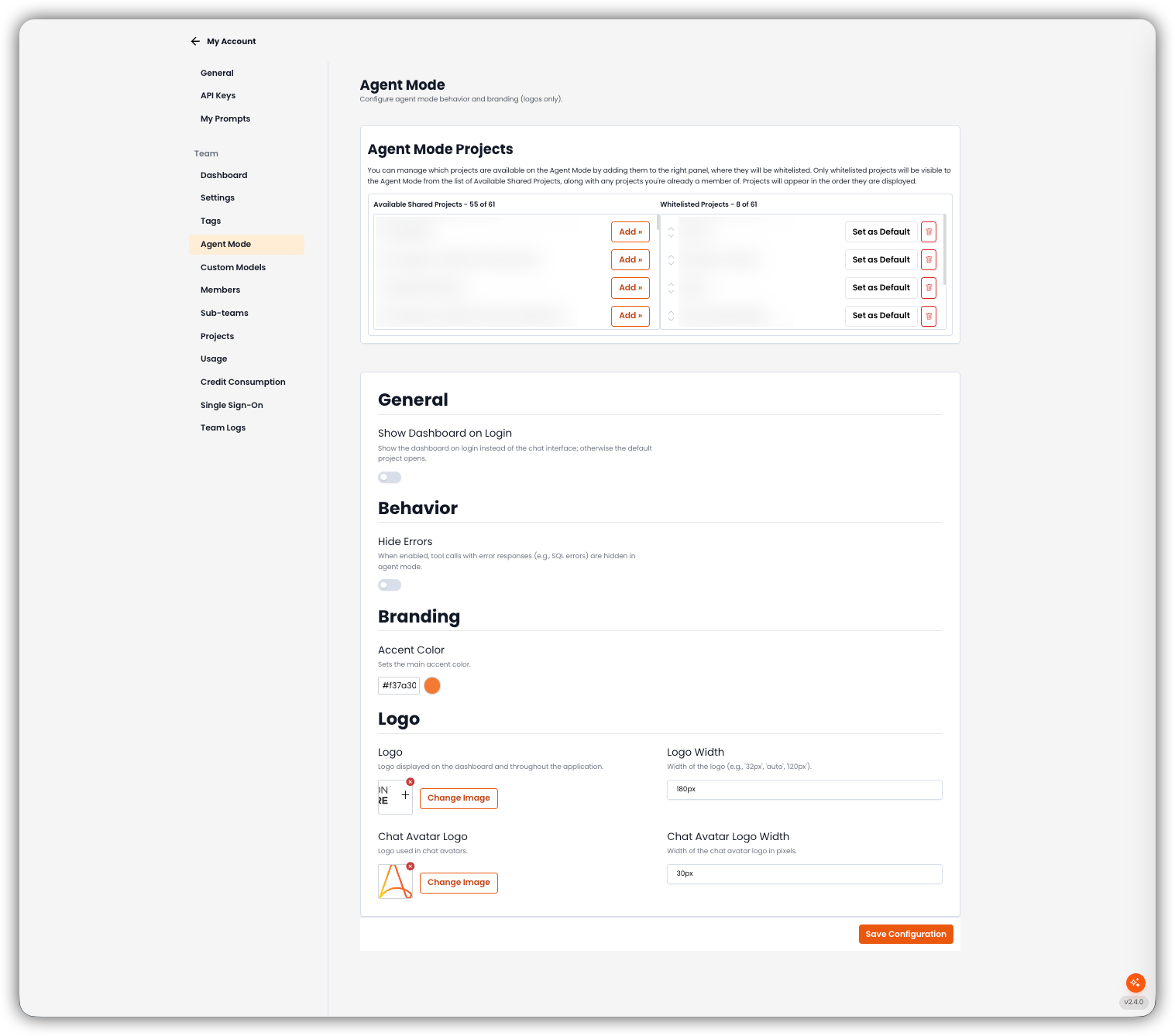
Agent Mode Projects
Whitelist the projects that appear in Agent Mode. Only whitelisted projects (plus projects the person is already a member of) show in the Agent Mode list. They appear in the order shown on the right.
| Panel | What you do |
|---|---|
| Available Shared Projects | Shared projects not yet whitelisted. Click Add » to whitelist one. |
| Whitelisted Projects | Projects visible in Agent Mode. Set as Default, reorder with the arrows, or remove. |
The Default project is the one Agent Mode opens when Show Dashboard on Login is off.
Empty states: No projects available (left) and No projects enabled (right).
General
- Show Dashboard on Login Show the dashboard on login instead of the chat interface. If this is off, the default project opens.
Behavior
- Hide Errors When enabled, tool calls with error responses (for example SQL errors) are hidden in Agent Mode.
Branding
- Accent Color Main accent color for Agent Mode.
Logo
| Field | What it controls |
|---|---|
| Logo | Logo on the dashboard and throughout Agent Mode. Use Change Image to replace it. |
| Logo Width | Width of that logo (for example 32px, auto, 120px). |
| Chat Avatar Logo | Logo used in chat avatars. |
| Chat Avatar Logo Width | Width of the chat avatar logo in pixels. |
Click Save Configuration to save project whitelist, default project, and appearance together.
Related
- Team Settings — Chat Mode for Members
- Autopilot Modes — Autopilot Agent vs Build mode
- Custom Models — team-wide LLM connections