Members
Open My Account → Members to manage who belongs to your team and what platform-wide role each person has.
On this page you can typically:
- View the list of team members (and search or filter when the list is long)
- Invite or add people to the team
- Assign or change a team-level role (Admin, Editor, or Member)
- Assign Access Tags to members (for Knowledge Base document visibility)
- Remove members when they should no longer have team access
Nested seat and credit rules (shared license pool, admin inheritance) are summarized below and covered in depth under Sub-teams.
Team-Level RBAC
Enterprise Knowledge supports Team-level Role-Based Access Control (RBAC), which defines what users can access and manage across the platform as a whole, independent of any individual project. These permissions govern platform-wide capabilities such as creating and managing projects, administering users, configuring team settings, and viewing usage and audit data.
Unlike project-level RBAC, team-level roles are fixed and standardized. Enterprise Knowledge provides three default team-level roles—Admin, Editor, and Member—and does not support Custom Roles at this level. This approach ensures consistent governance, predictable behavior, and strong security controls across the organization.
Team-level RBAC determines:
- Whether a user can create, edit, or delete projects
- Access to team-wide settings and configurations
- The ability to add, modify, or remove team members
- Visibility into usage metrics, credit consumption, and audit logs
- Access to advanced features such as Agent Mode, depending on team settings
Team-level RBAC works in conjunction with project-level RBAC. A user must first have an appropriate team-level role to access the platform, and then a project-level role to interact with a specific project. For example, a user may be a Team Member with limited administrative privileges, while still being assigned an Admin or Editor role within specific projects.
Team-Level Roles and Permissions
When adding a user to a Team in Enterprise Knowledge, you must assign one of the available team-level roles. These roles control a user’s platform-wide permissions and do not define what the user can do within individual projects.
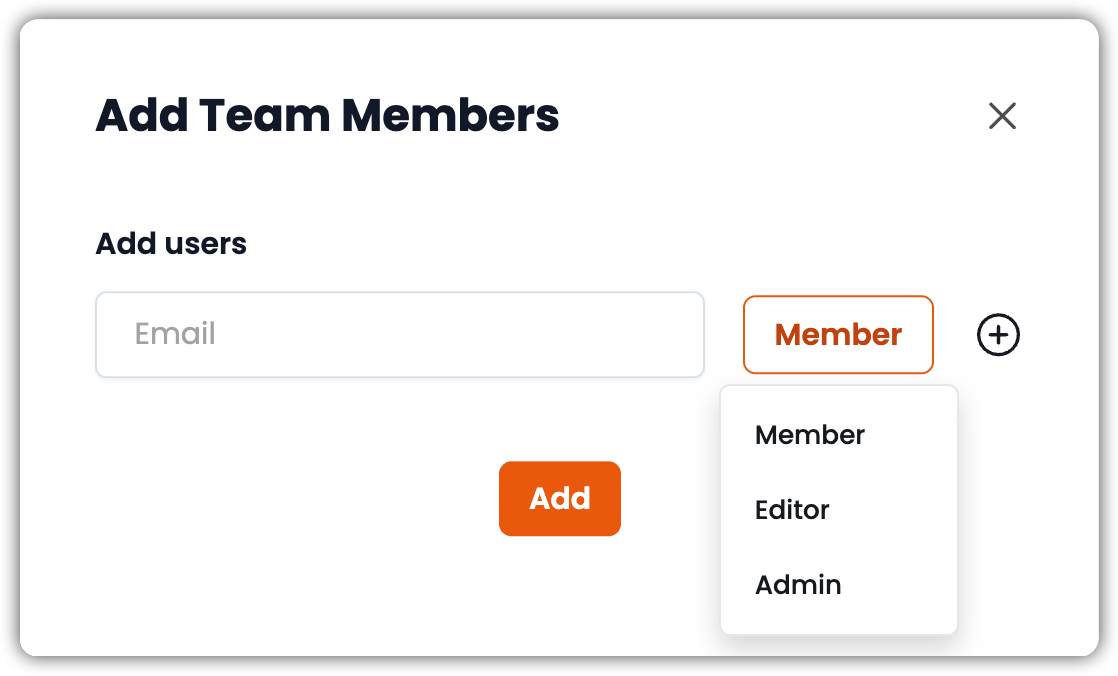
Member
The Member role is intended for standard users who primarily work within projects and do not manage the team or platform configuration.
Members can:
- Access and work in projects they have been added to, based on their assigned project-level role
- Create new projects if the team setting “Members Can Create Projects” is enabled
- Access Agent Mode if the team setting “Chat Mode for Members” is enabled
Members cannot:
- Manage team settings
- Add, remove, or modify other team members
- View team-wide analytics, logs, or usage data
Editor
The Editor role is designed for power users who need broader control over projects but do not require full administrative access at the team level.
Editors can:
- Access, edit, and delete projects, subject to their project-level role
- Create new projects
- Access Agent Mode
- Perform all actions available to Members
Editors cannot:
- Manage team-wide settings
- Add or remove team members
- Access team-level usage analytics or logs
Admin
The Admin role provides full control over the Team and is intended for platform owners and administrators.
Admins can:
- Perform all actions available to Editors and Members
- Manage Team Settings
- Add, modify, and remove team members
- View all projects and monitor credit and token usage
- Manage Tags used for users and Knowledge Base documents
- Configure Agent Mode settings
- Access usage analytics, audit logs, and team activity logs
Because Admins have unrestricted access to team-wide configuration and data, this role should be assigned sparingly and only to trusted users.
Nested teams, seats, and admin inheritance
If your organization uses Sub-teams:
- Seats come from a shared license pool. Inviting someone to a child team uses family capacity (a child with no local seat cap is not blocked solely for that reason).
- The same person on a parent and a child typically counts as one seat.
- Team Admin authority can be inherited down the tree: a parent admin can administer child teams. The Editor role is not inherited the same way.
- Manage hierarchy, seat ceilings, and credit caps under My Account → Sub-teams. Monitor credit usage on Credit Consumption.
Best Practices for Team-Level RBAC
- Limit Admin access: Assign the Admin role only to users who require full team oversight.
- Use project-level roles for granularity: Rely on project-level RBAC to control detailed access within projects.
- Align roles with responsibilities: Choose team-level roles based on platform governance needs, not job titles.
- Review access regularly: Periodically audit team roles to ensure permissions remain appropriate as responsibilities evolve.