Export Project
The Export Project feature lets you download a zip file containing a snapshot of your project. Use it to back up your work, migrate a project to another environment, or share a portable copy of your configuration.
Exports are initiated from the Data section on the General settings page.
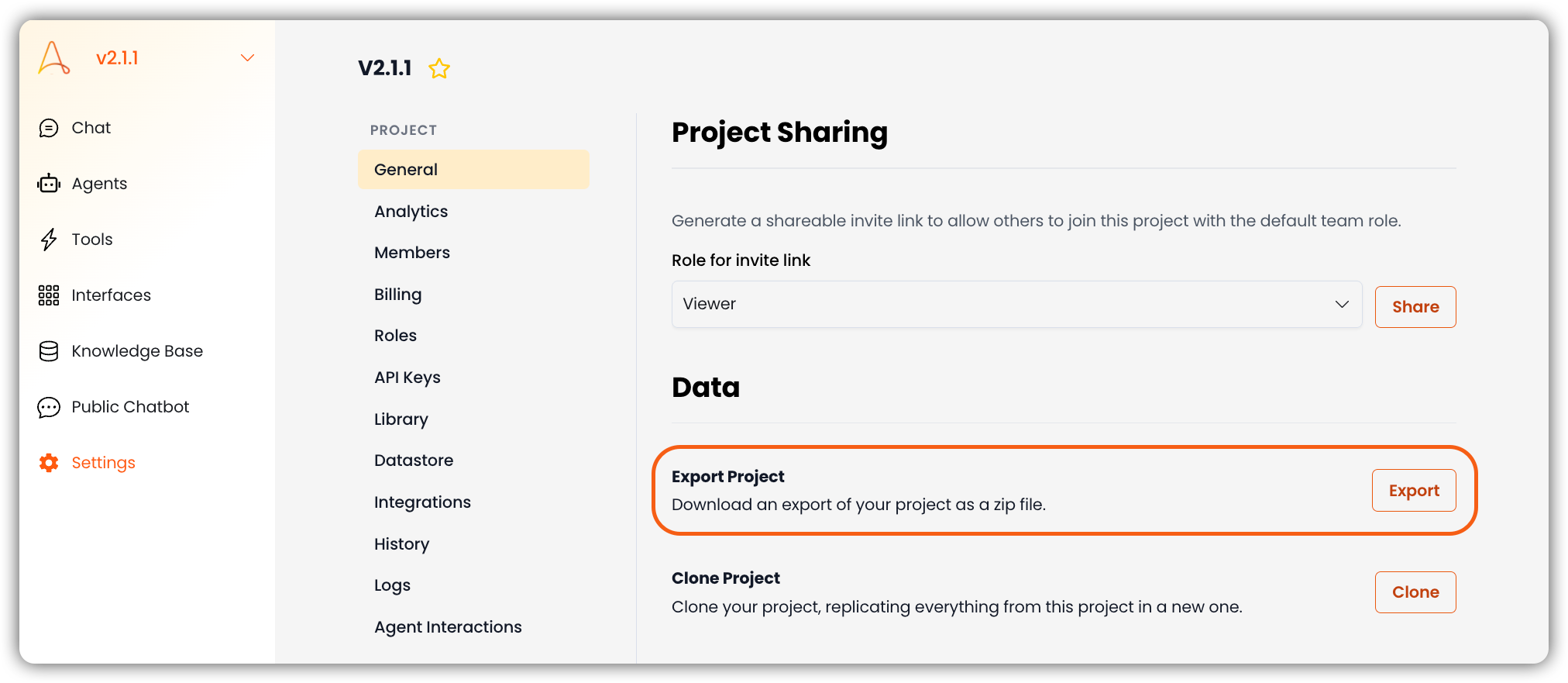
Export a Project
- Open Project Settings
Navigate to your project and open Settings → General.
- Start the export
In the Data section, find Export Project and select the Export button.
- Configure export options
In the Export Project modal, choose which components to include. See Export Options below for details on each toggle.
- Download the zip file
Select Export Project to start the export. When the process completes, the zip file is downloaded to your browser's default download location.
Depending on the size of your project, the export may take some time to complete. You will receive a notification when the process is finished.
Export Options
When you select Export, the Export Project modal opens with options to control what is included in the zip file.
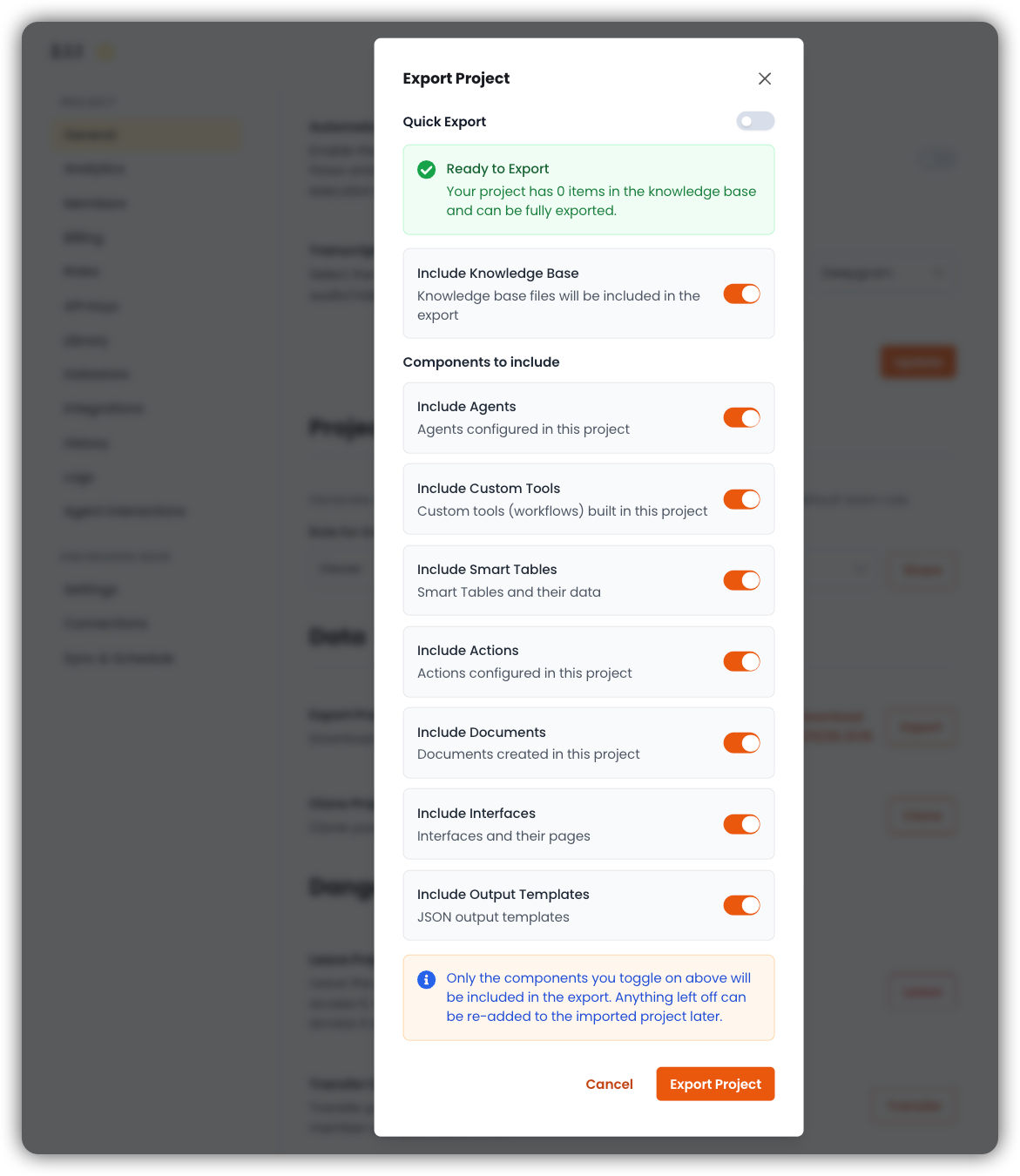
Quick Export
Enable Quick Export to use the streamlined export flow. You can still toggle components on or off before exporting — Quick Export works with any combination of selected components, including a partial selection.
Ready to Export
Before you export, a status message confirms whether your project is ready. For example, it may show how many items are in the knowledge base and whether the project can be fully exported.
Knowledge Base
| Option | Description |
|---|---|
| Include Knowledge Base | Includes knowledge base files in the export. |
Components to Include
Toggle each component on or off to control what is included:
| Component | Description |
|---|---|
| Include Agents | Agents configured in this project. |
| Include Custom Tools | Custom tools (workflows) built in this project. |
| Include Smart Tables | Smart Tables and their data. |
| Include Actions | Actions configured in this project. |
| Include Documents | Documents created in this project. |
| Include Interfaces | Interfaces and their pages. |
| Include Output Templates | JSON output templates. |
Only the components you toggle on will be included in the export. Anything left off can be re-added to the imported project later.
Select Cancel to close the modal without exporting, or Export Project to begin the download.